
Many people are confused by AI-enhanced mind mapping today. Is it worth their investment of time? Will it provide them with real value? Or is it nothing more than a gimmick that adds a veneer of coolness to digital mind maps?
I recently had the opportunity to review Mindmap AI and am pleased to report that its implementation of AI offers real value to its users. Its thoughtfully-designed toolset helps its users to save time, plan more thoroughly and brainstorm more effectively. It’s particularly valuable to business analysts, students, creatives and anyone who needs to quickly make sense of unstructured information.
First impressions
When you first begin using Mindmap AI, you may be surprised at the plain appearance of the maps it creates. It lacks some of the formatting options of other mind mapping tools, such as a collection of themes, topic formatting options, icons, relationship lines and other embellishments.
That’s not to say that Mindmap AI is hard to use. Far from it. It does the basics very well and offers a simple, intuitive interface that enables you to get to work capturing, generating and analyzing ideas and information right away.
Mindmap AI’s spartan appearance is by design, according to the developer. Its primary focus since the application’s launch has been building a useful set of AI capabilities that help its users be more productive and creative. Starting in 2026, it will turn its attention to adding visual enhancements to its feature set.
AI capabilities overview
Mindmap AI offers an impressive toolbox of AI-enhanced capabilities, including:
- Building entire mind maps from prompts
- Expanding your map’s content on a branch-by-branch basis
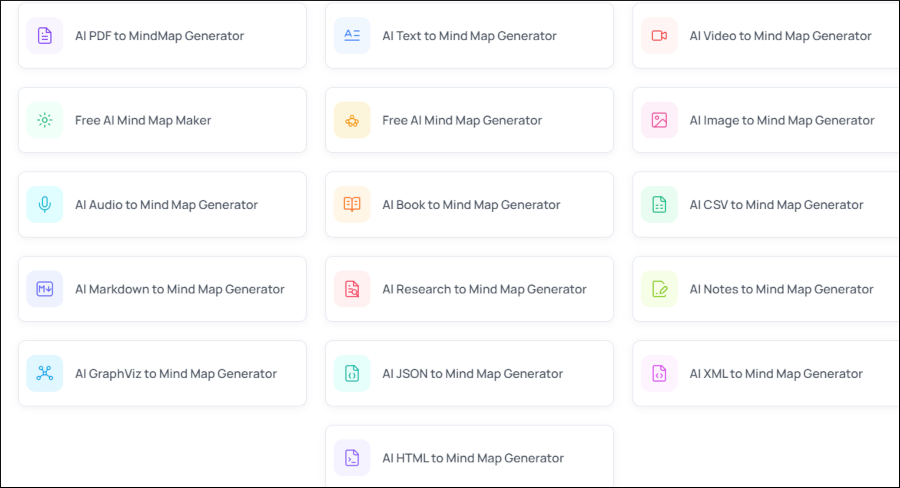
- Summarizing many types of content as mind maps, including documents, PDFs, images containing text, audio files, HTML web pages, videos and markdown files
- Summarizing all the topics of a map branch
- Maintains a chat history with the mind map, enabling you to continue conversations with it at any time
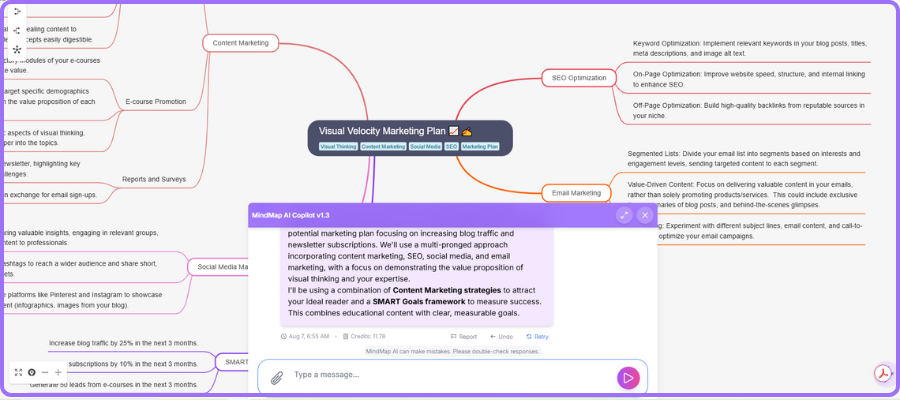
When you start a new mind map in Mindmap AI, the chatbot window fills the bottom third of the workspace. It contains a friendly summary of what it can do for you: “Hello! 👋 I’m MindMap AI, your intelligent mind mapping assistant. I can help you…” This approachable message is very helpful to first-time users, who may not realize what you can do with it. It’s all very simple and clear – which is good..
If you don’t want to use it, this dialog box can be closed. To re-open it, you simply click on a lightning icon in the lower right corner of the screen.
To evaluate Mindmap AI, I tried three experiments with it:
(click on map images below to view larger versions)
Experiment #1: Analyzing a technical paper
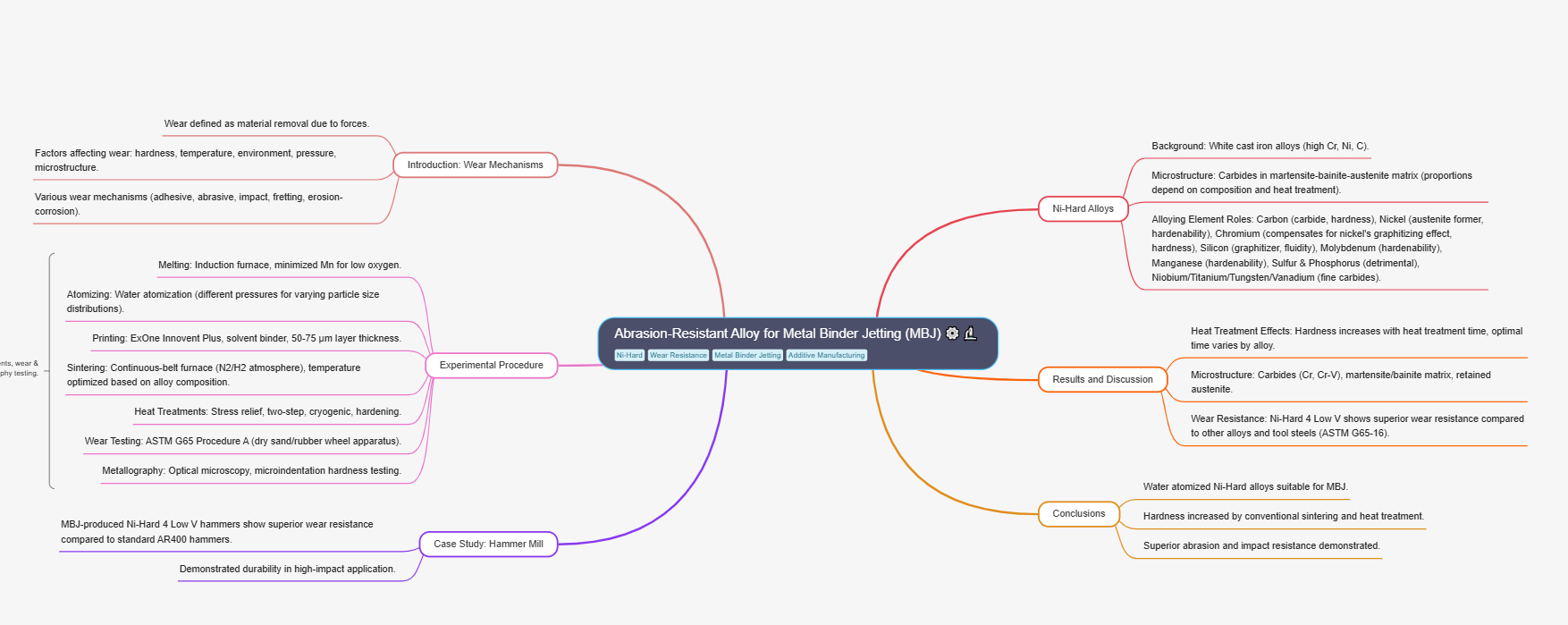
I used a technical paper about metal binder jetting – a form of metal 3D printing – for my first experiment with Mindmap AI. I uploaded the PDF and wrote a simple prompt, asking the application to analyze it and summarize it in a mind map.
Mindmap AI did a good job of summarizing the paper. But I found its formatting to be somewhat confusing. It has become a de facto standard over the years for mind maps to be read in a clockwise manner, starting at the one o’clock position. That means the first topic you read should be above and to the right of the central topic. Oddly, Mindmap AI placed an introductory topic in the upper left quadrant of the map. Otherwise, it was an excellent visual summary of the paper.
Experiment #2: Building a marketing plan from scratch
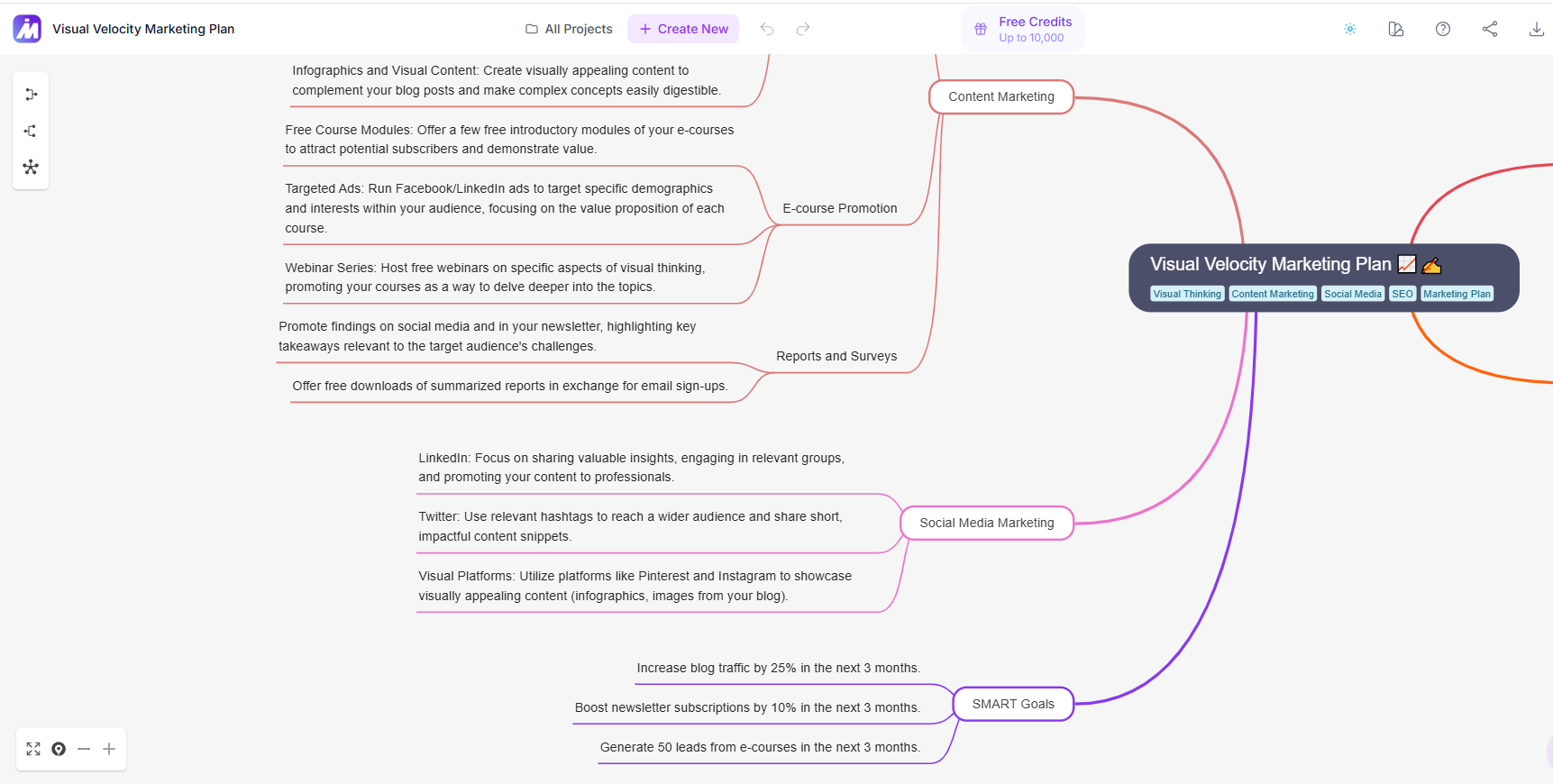
My next experiment was to use Mindmap AI to build a new mind map from scratch. I wrote a simple prompt, asking it to create a marketing plan for my business. Its response was to ask me to answer a series of questions about it – including the focus of Visual Velocity, its products and services, its ideal audience and more.
Armed with that information, it quickly produced a comprehensive plan with some very practical recommendations. Nothing wildly creative. But rather a solid set of marketing tactics that served as a reminder of what I SHOULD be doing to promote and grow Visual Velocity. Overall, I was satisfied with the quality and organization of its output.
Experiment #3: Converting a map image into a mind map
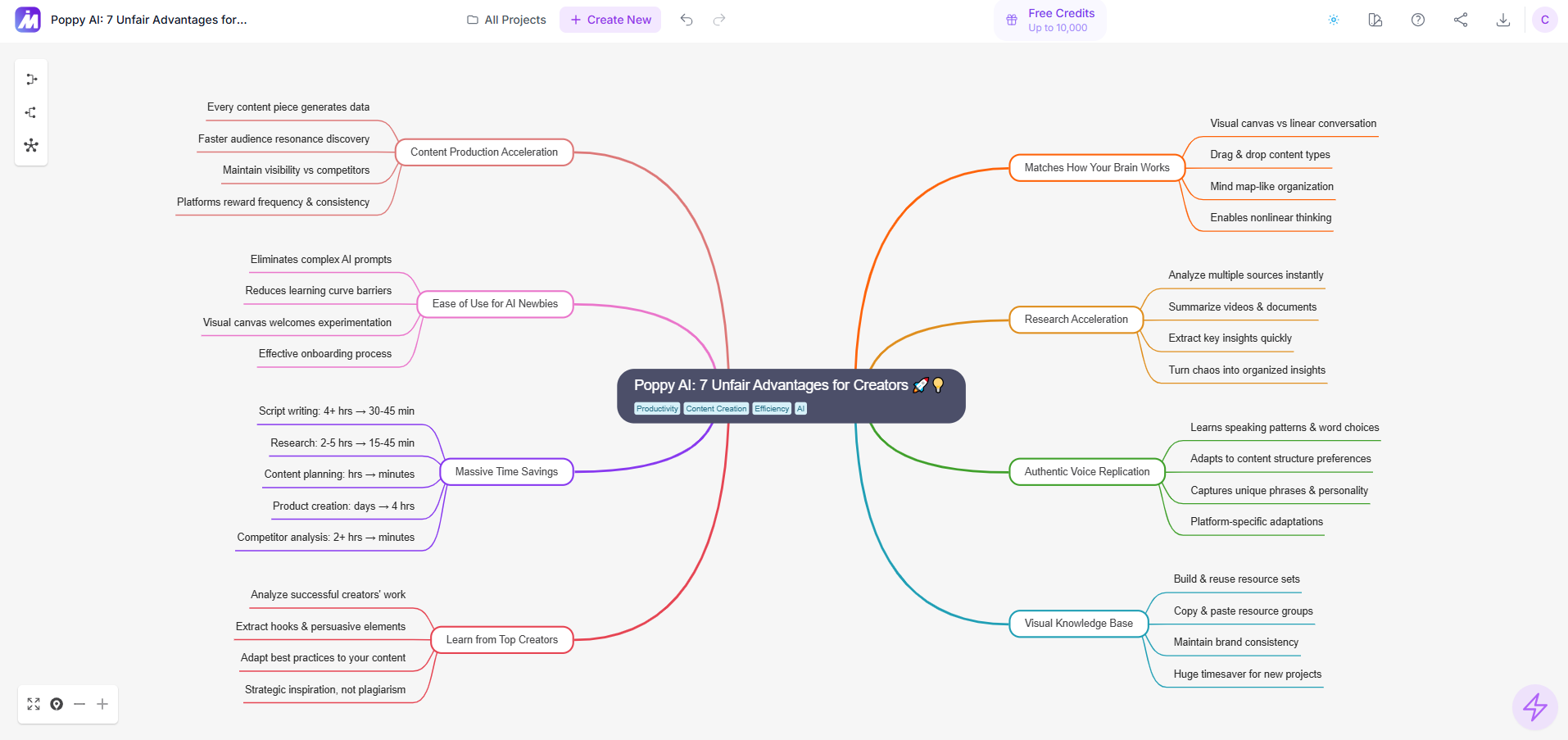
Finally, I used it to create a mind map from an image of a mind map, a PNG file exported from a visual AI tool called Poppy AI. Mindmap AI did a very good job recreating every topic and subtopic accurately. Extracting text from images is a core capability of most AI tools these days. But I was pleased to see that the process of recreating an editable mind map from a static image was so easy.
Notable AI features
Here are some capabilities of Mindmap aI that stood out to me:
“Retry” button: If you don’t like the output that Mindmap AI’s agent gives you, simply click on the “retry” button in the prompt dialog box and the application will re-query it with the same prompt – without using any additional credits. Nice! Here’s a smart feature: If you modify a branch after the AI has generated, this retry functionality is disabled. That prevents you from overwriting your changes.
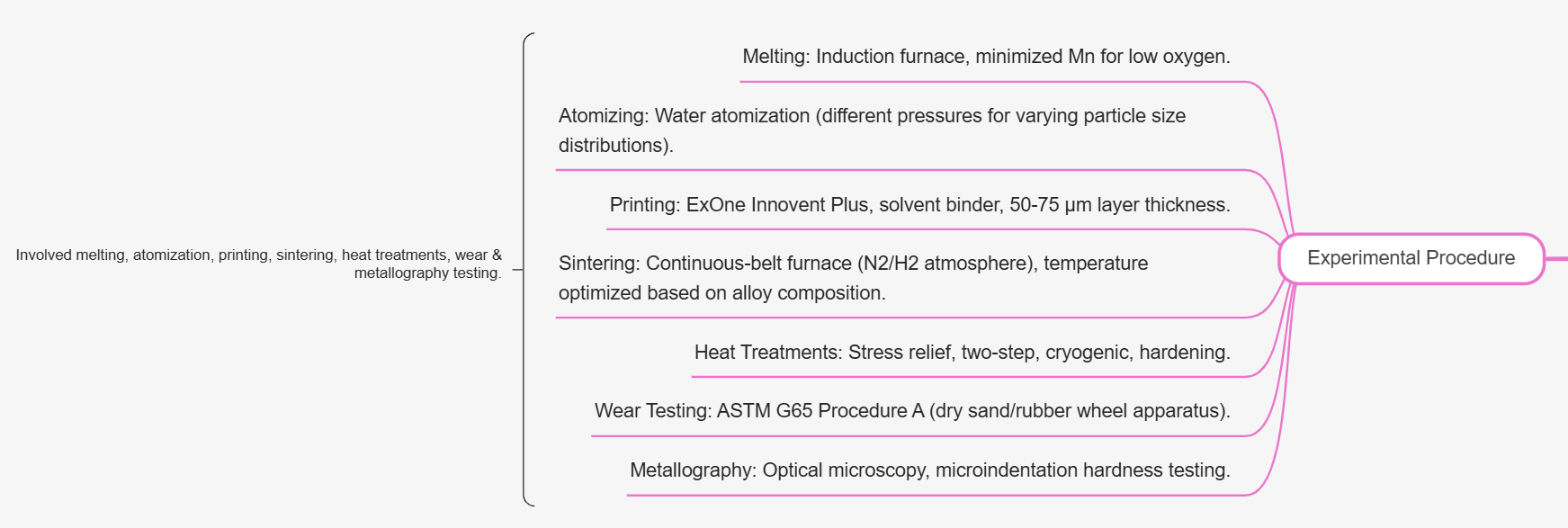
Summarize topic: Mindmap AI can analyze an entire branch of your mind map and concisely summarize it. This appears as a bracket facing the open end of the branch with the summary on the other side of it. This would be most useful if you have asked the application to analyze a lengthy article or paper or book and you’re looking for a quick summary of a part of it.
Focus topic: This command enables you to select a branch of your mind map and break it off into a new one. I questioned whether the focused branch is linked to the original map. Not at this time, but the developer may add this functionality in the near future.
Second-order connections: This unique capability enables you to sell its AI agent to generate a map with dotted relationship lines that connect related topics that are not adjacent to each other. I was hoping it could analyze the content of a mind map I’ve already created and add relationship lines to related topics the AI has discerne, but that’s not the way it works. It can only be done when prompting Mindmap AI to generate a new map.
Interactive “AI Copilot” chat for each mind map with persistent history: Each map you create in Mindmap AI has its own chat where you can brainstorm, ask the AI to expand/focus/summarize nodes, and revisit prior chat history tied to that map. This brings a more conversational workflow and a statefulness to Mindmap AI than I’ve seen in other AI-enhanced mind mapping tools.
Create mind maps from a wide variety of media: This may not seem to be such a big deal at first. But for businesspeople, it’s a huge productivity booster. This feature enables users to create mind map summaries of call transcripts, meeting notes, research papers, business reports and much more. This feature alone can help knowledge workers and managers to streamline their research and business analysis.
A large number of export options: Multiple export and map sharing options make it easy to move maps into other workflows. Mindmap AI can export to:
- PNG
- SVG
- CSV
- Markdown
You can also share public or private links to your mind maps, plus the developer offers a chrome extension and iOS/Android apps that integratecwith Mindmap AI. All this gives you a lot of flexibility.
Conclusion
The developers of Mindmap AI have done an impressive job of building a set of AI tools that bring real value and ease of use to this relatively new platform. I found its AI capabilities easy to use and the quality of the output was very good. I can’t wait to see where they take it from here.
To learn more about Mindmap AI and try it out, visit the developer’s website.
Leave a Reply