
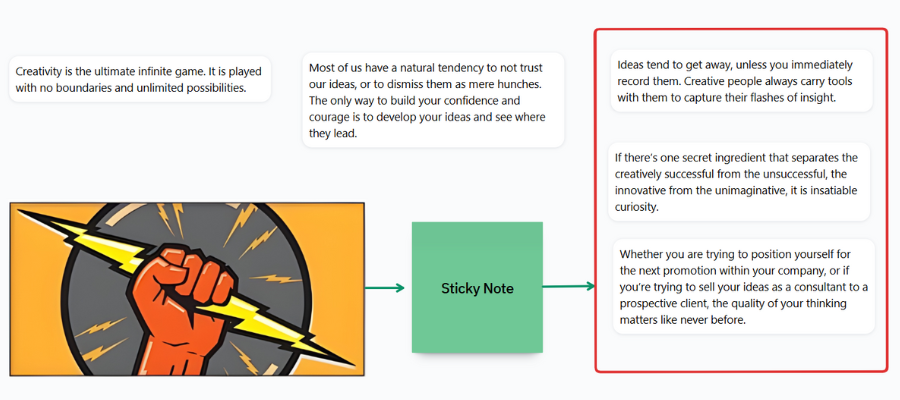
The developers of Sublime, a tool for capturing and nurturing your ideas, have added a number of enhancements to its visual canvas since I first reviewed this innovative app last year. That makes it an ideal time to take a closer look at what’s new and explain how you can use it to elevate your creative work.
How we got here
Last year, I published a review of Sublime, a digital notetaking tool with the difference: it’s unique features enable serendipity and creativity in some powerful ways.
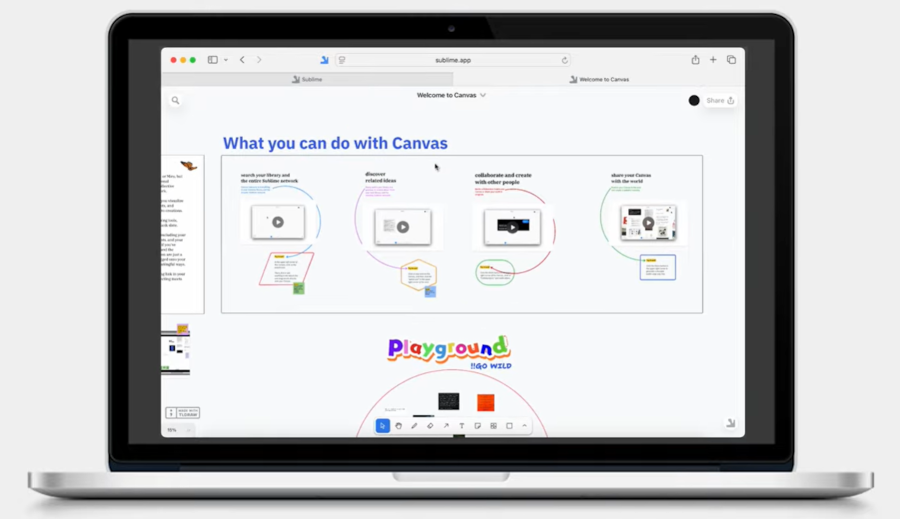
One of the things that makes Sublime unique is its canvas, which enables you to display your notes on a whiteboard and work with them.
Why does this matter? Because linear notes are a very limiting way to view the ideas and inspirations you’ve captured in any app. It’s best to view ideas in relationship with each other. Displaying them on a whiteboard enables you to arrange them with complete freedom, sparking new connections. Sublime canvas is a perfect place to nurture your ideas.
Let’s take a closer look.
Starting a canvas
Sublime gives you multiple options for creating a new canvas. You can open a single collection of your thoughts, one that contains notes from multiple collections or you can begin with a blank canvas. The latter is especially useful for free-form brainstorming and other applications where you don’t want a lot of visual clutter on your canvas.
I’m glad to see that the development team at Sublime didn’t just make the canvas a simple tool for visualizing your existing ideas. It’s also a very capable tool for generating new ideas and insights. This is just one example of how it does that.
Searching for ideas
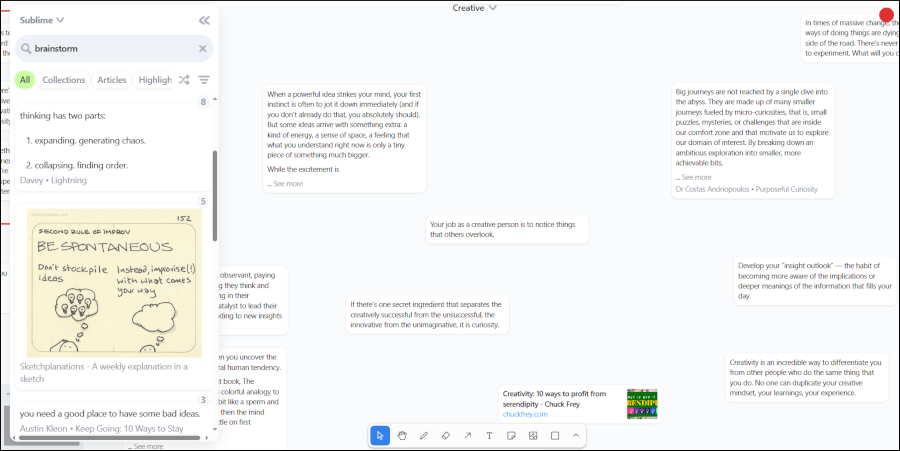
While viewing the canvas, you can search for ideas from your library or from the entire Sublime library. You can drag and drop cards from the search results panel into the canvas. You can also access any Instagram saves or X bookmarks you have imported into Sublime. You can also sort or shuffle the cards in the search results window. I think the shuffle function is especially interesting, because it reveals ideas that you may not otherwise see.
Exploring related ideas in the canvas
Each card in the canvas contains a wand icon in its micro-toolbar. This gives you access to the ideas that Sublime’s AI thinks are related to the one you have currently selected. They appear in a vertical pane on the right side of the workspace
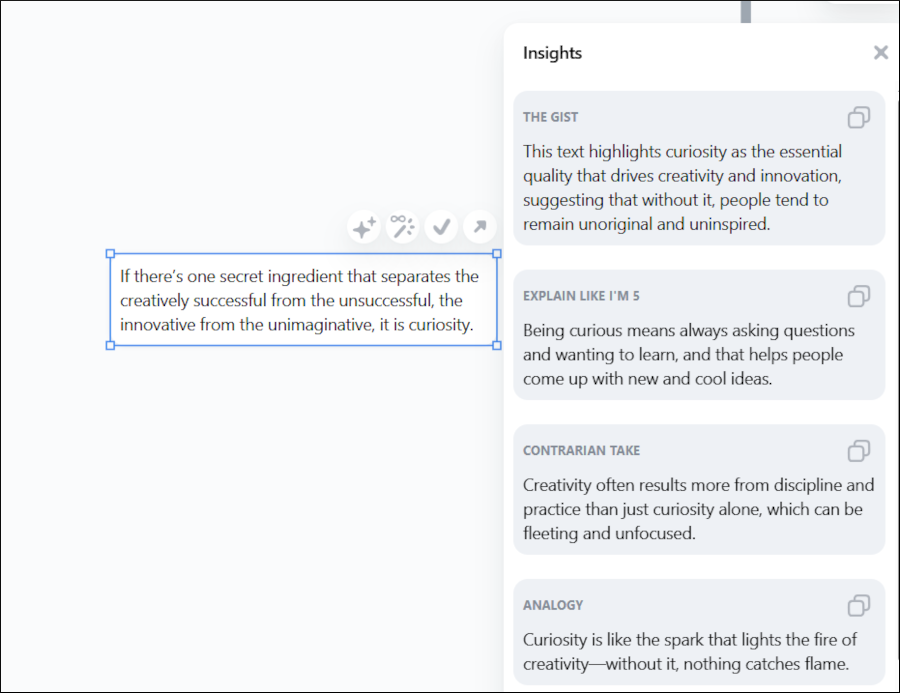
Clicking on another button opens an “insights” tab, which gives you opportunities to view your card from a variety of perspectives. Looking at a challenge from multiple points of view is a key brainstorming strategy. It contains prompts like “explain it to me like I’m 5 years old” and ‘contrarian take.” I’m pleased to see that this powerful “sleight of head” tool is available in canvas view.
Drawing tools and media
You can use Sublime’s canvas to make quick doodles of ideas using its freeform drawing and eraser tools. You could also use it to annotate or emphasize cards on the canvas. You can also add media (images and video clips) to the canvas.
Connecting ideas
When I reviewed Sublime last year, the canvas already had an arrow tool. You could use it to point to other notes, but couldn’t connect them. That shortcoming has now been remedied. Once you connect to ideas and subsequently move one of the cards, the arrow follows along.
In my way of thinking, the arrow tool is one of the most useful in Sublime canvas. It is the primary way that you create connections and patterns between your thoughts. You can also use it to create processes and sequences.
Sticky notes
This is another feature of canvas that was available last year. It enables you to quickly add notes or bits of ideas to your canvas. The difference between it and a card is that the sticky notes only appear in the canvas, not in your collections or your Sublime library. Sticky notes can be connected just like any card
Shapes
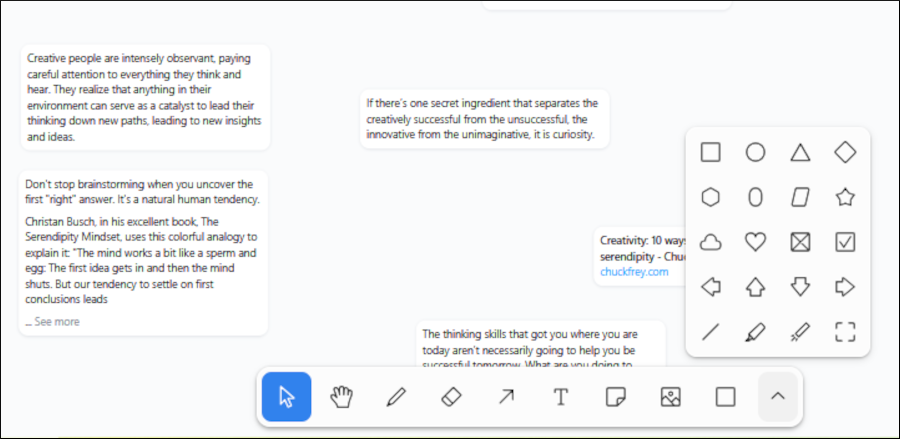
Shapes are another original feature of Sublime canvas. It gives you over 20 shapes you can add to it. While you can use them to visually group cards together, they can’t function as containers. In other words, if I draw a rectangle and move several cards within it and then move the rectangle, the cards don’t move with it. Perhaps in a future version of the canvas?
Here are some ideas of how you can put shapes to use:
- Visually group related ideas together by containing them within a visual “fence” instead of using arrows. However, shapes in the canvas float above it and don’t interact with the notes they encircle. So you can’t move them as a group.
- Separate your notes into groups based on common characteristics (for example, all ideas that are related to marketing).
- Add visual emphasis to a specific group of notes (by drawing a circle or a rectangle around them and then coloring it red, green or some other bright color)
Adjusting the appearance of content
Sublime canvas also gives you an integrated set of tools that enable you to change the color, size and alignment of elements you add to its visual workspace, including shapes, arrows and text. It’s not possible to apply colors to cards. It would be nice to be able to do so, for prioritization and emphasis, for example.
Sharing and collaboration
When Sublime was originally launched, its canvas enabled view-only sharing. In addition to that, it now enables other people to collaborate on your canvas with you. This transforms Sublime from being a solitary brainstorming tool to one where you and a colleague or a small team can work on ideas together.
See Sublime’s canvas in action
The developer recently launched a “how to” video that demonstrates the capability of the canvas. You can view it on YouTube:
My favorite quote from the video:
“If you’ve been saving what inspires you, what you feel in your gut and what lights a spark – but you’re not sure where to go next – canvas is a powerful step forward. With canvas, you can bring together different ideas, takes, concepts and fragments. You can draw connections, revealing patterns and leading you to new conclusions.
In a world optimized for endless saving, canvas gives you a place to pause, zoom out and connect the dots. Because creativity doesn’t just come from more input. It comes from pausing long enough to see what you already have.”
How can you use Sublime canvas?
Sublime’s continued evolution of the canvas view makes it an excellent tool for a growing number of creative tasks, including these:
- Brainstorming tool (solo or small team)
- Moodboard (design inspiration)
- Planning tool
- Map out a piece of long-form content or video
- Customer journey mapping
- Buyer persona development
- Workshop facilitation
- Assumption mapping
- Event planning
Conclusion
From the start, Sublime has been powered by a unique vision for creativity and serendipity. I’m glad to see that this vision extends to the canvas. For example, the fact that you can add related ideas from your own and others’ libraries to this whiteboard (and not just in the linear card view) is a real plus. The same goes for insights, which uses AI to re-interpret the content of a card in five unique ways.
Including these intelligent features in the canvas transforms it from an average visual whiteboard into a powerful and flexible place to nurture and expand your ideas.
To learn more about this unique, creative thinking tool and its remarkable canvas, visit the Sublime website.
Pricing
The developer offers a surprisingly complete free version, except with limited quantities of cards, libraries, canvases and limited summaries, insights and integrations – enough to decide if Sublime is a good match with your thinking style or not. I’m impressed with the ways in which it supports my creativity and offers me opportunities for serendipity on demand. I’m also a big fan of the vision behind it and how that’s playing out as Sublime evolves.
Leave a Reply