
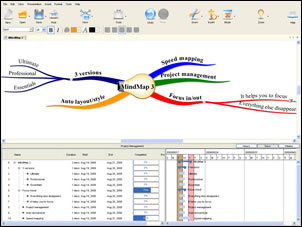
 The Buzan organization recently released a beta of iMindMap 3. Here’s a detailed review of what is new in this version, and how it benefits business users.
Three new versions: The developer has introduced several new versions of the program: Elements, Professional and Ultimate. Elements is designed for basic mind mapping needs. Professional is designed for business users, and offers integration with Microsoft Office and OpenOffice.org. Ultimate adds project management capabilities and other features.
Improved speed mapping mode: Version 2 of iMindMap contained a speed mapping mode, which enabled you to quickly record ideas using only the keyboard. This capability has been improved in version 3 to give you greater control over map layout (see auto layout and style below). You can also navigate your map using your arrow keys to select the branches to which you want to add new ideas. Compared to other program’s “brainstorming modes,” I don’t like this one as well. You’re supposed to first select a topic; when you start typing, a text box pops up to capture it, while below it a blank branch is created. When you hit the enter key, your text is added to the branch and another text box appears, ready to capture your next idea. The problem I have with it is that when I select a topic, I can’t get over the fear that when I start typing, my current topic name will be over-written. I much prefer the style of brainstorming where clicking the insert key creates a new topic. This just feels odd to me.
Auto layout and style: Previous versions of iMindMap produced very organic looking maps, with tapered branches that could be reshaped at will. But the developers of the program realized that, in order to appeal more to business users, it needed to be able to produce more “traditional” looking maps. iMindMap version 3’s new auto layout and style capabilities address this need. When you open the “auto layout” dialog box, the first thing you see is a slider control, with a 10-position scale from linear through organic to radial. If you drag the slider more to the right, your map will take anymore organic, “brain friendly” look. If you drag and more tour the left, the branches of your map will straighten out and will look much more like a typical business-oriented mind map. I played around with this a bit, and found that while it was nice, it wasn’t all that useful. The linear version of my map still looked fairly similar to the radial view of it.
Focus in and out: This useful command enables you to concentrate in one part of your mind map that time. When applied to a selected branch, the program hides the rest of your map and treats the selected branch as if it is the center topic of your map you can then focus on adding content to that section of your map, without the visual distraction of the rest of your map. When you’re done developing that section of your map, you simply focus out to display the entire map once again. I’ve always been a fan of this functionality, because I tend to get distracted easily. The less visual distraction, the better I can concentrate. This capability is nicely implemented in version 3.
Expanded export options: iMindMap version 3 contains an expanded set of options for exporting your maps to other formats. Version 2 offered five export formats, including Microsoft Word, web page, image, PDF or Powerpoint. Version 3 adds exports to Word 97 (docx) or Word 97-2003 (doc), OpenOffice Writer, an interactive PowerPoint option, Impress (the open source presentation application of OpenOffice), and spreadsheet (Excel or OpenOffice Calc). The interactive presentation option saves your map as a PowerPoint file, with the entire contents of your map in a single slide. When you play the slide show, your map appears one branch at a time. Each mouse click reveals another branch or sub-branch, which enables you to present your mind map, one branch at a time. However, this approach can quickly clutter the screen. It would be better if this export format would expand each main branch one at a time, while contracting the rest of them. Also, I think it would give users greater control over the presentation of their maps if a presentation mode was added to iMindMap.
Importing: iMindMap version 3 now imports maps from MindManager and FreeMind. It doesn’t import their native file formats, but rather their XML file types.
Project management system: Perhaps the most welcome addition to iMindMap version 3 is the addition of project management tools, including an integrated Gantt chart view. Task information in iMindMap 3 is accessed via a right-click command; you can input the start and end times and dates for tasks, specify its priority level and the percentage completed. You can also add any relevant web links to your project data. All of your map topics appear in the Gantt view; there doesn’t seem to be any way to distinguish between those topics that are tasks and those which are not. Task data is only displayed in the Gantt chart below the workspace, not in the map itself. This helps to minimize visual clutter, but does make it hard to know which topics contain task data and which do not. Some sort of visual indicator or icon would be nice.
Interestingly, the project management capabilities of iMindMap 3 include the ability to control the order in which are tasks of your in the project management list. You can control this by clicking on a branch ordering command in the view menu. The program then displays the numerical order in which each topic was added to your map, and gives you the ability to manually change those numbers. When you have finished entering your project data into the program, you can then export it to Microsoft Project.
Screen capture tool: iMindMap 3 enables you to take a snapshot of sections of your map, which you can then paste into other applications as a graphic. The way the developers implemented this is very slick; it couldn’t possibly be any simpler. When you select the screen capture tool, your cursor turns into a small cross. You then drag it across the section of your map that you want to appear in your screen capture. When you release you mouse button, the area you selected will be copied; it you can then pasted into any other application. I tried it, and it worked great. I selected part of my map and pasted it into a Word document that I was working on; the image appeared to be very sharp, with no loss in quality. At least one other program enables you to create instant screen shots of your maps, but none are as simple and elegant as this implementation. If you want to share a portion of your map with a teammate or colleague, without having to go through the longer process of exporting it, then you may find this new feature to be valuable.
View menu: iMindMap 3 contains a new view menu toolbar button that enables you to quickly switch between different views of your map. You can select from:
- Mind map view, which is the standard view,
- Navigator view, which opens a side panel that displays an overview of your map – particularly valuable if you’re working with a large complex map)
- Image library view, which opens an image selector panel on the left side of the workspace
- Icon library view, which opens an icon selector panel on the left side of the workspace.
I like the fact that the program keeps these useful resources out of the way, giving you a large, uncluttered workspace in which to develop your maps. But when you need these resources, they are only a single click away. The program opens in mind map view, which gives you the maximum amount of screen real estate in which to create your map. I like the fact that the program gives you as much space as possible to do a “brain dump” of your ideas; you can later turn on the formatting toolbar and some of these other views to enhance your map. At first it does seem odd that the image and icon libraries are included in the “views” menu, when in fact they’re really resources.
Some minor negatives: The toolbar and user interface looks a bit “cartoonish,” which some business users may find to be less than impressive at first glance. At first, I couldn’t figure out how to add notes, links or attachments to branches, something that’s essential for the maps that I create for my work. Turns out that these commands were located within an “insert/edit” command in the right-click menu. It would be better if these were first-level commands.
Conclusion
In version 3, the Buzan organization has done a nice job evolving iMindMap to the next level of functionality for business users. I like the fact that the developers have divided I mind map into several versions, to meet the needs of a greater range of users. People were just starting out in the world of visual mapping will find the basic version more than adequate for their needs, while business and power users will appreciate the expanded capabilities of iMindMap ultimate. The project management tools are a welcome addition. Still, this ambitious upgrade to an excellent mapping program has a few rough edges – but keep in mind that this is a beta release, and may not completely reflect what the commercial version 3 of iMindMap will look like.
Leave a Reply