
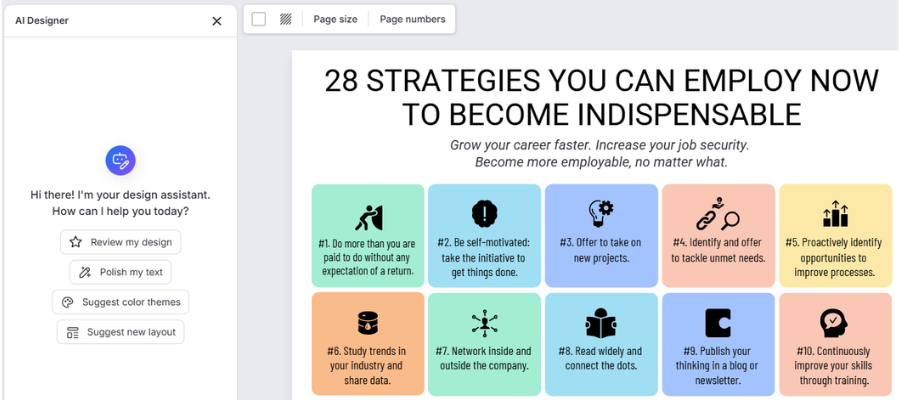
When it comes to AI, especially for images, I’ve very pragmatic. I’ve had my expectations lowered by some less than impressive experiences with AI-assisted image creation in ChatGPT, Gemini and Canva. To put it bluntly, the experience has largely SUCKED.
So when I recently had the opportunity to use Venngage’s AI assistant to create an infographic, the results pleasantly exceeded my expectations.
My AI-enhanced infographic experiment
Last week, over a period of four days, I published a series of Substack notes in which I shared 28 strategies to become indispensable at work.
After the full list was published, it was time to repurpose it into an infographic. I don’t ever build them from scratch because I’m not an artist. I usually start with a template instead. Let someone else do the graphical heavy lifting. Give me a nice design I can adapt to my needs.
For many years, my go-to for infographic creation has been Venngage. I like their template designs better than Canva or Visme and its editing tools are intuitive and easy to use. I found one that had 30 blocks. Visually, it looked like a good fit for what I was trying to create. So I selected it. At this point, I was planning to build my infographic manually, using the template I selected. AI wasn’t even on my mind.
When I opened the template, an AI prompt window popped up, offering to help me I’m always up for an experiment, so I wrote a very brief prompt and copied and pasted my list of 28 ways to be indispensable into it. I also asked the AI agent to select and add appropriate icons to each strategy.
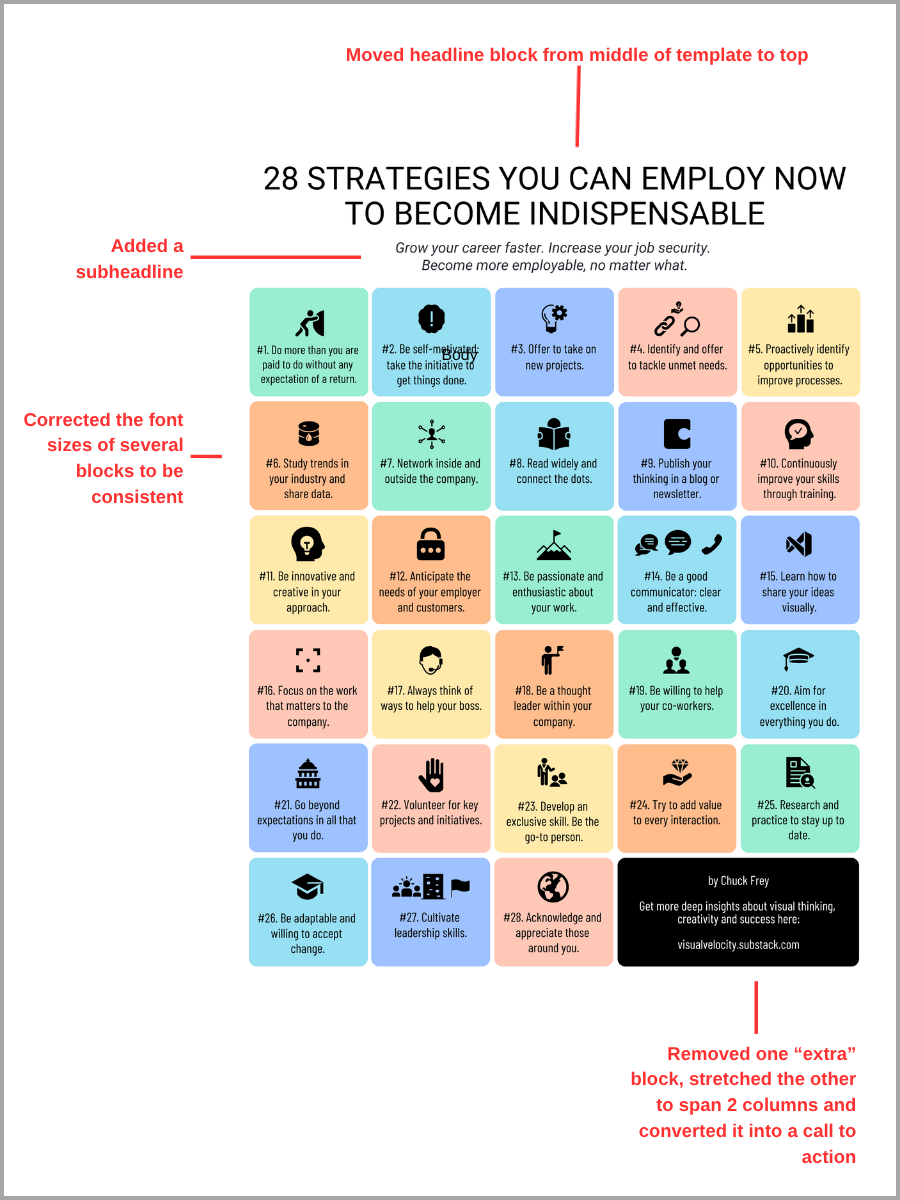
I was very impressed with the output. Except for a few font sizes that needed to be corrected, it did an excellent job translating my list into a very attractive infographic. The whole process took no more than 10 minutes. Compare that to several hours if I had to do the same thing manually.
I outputted my new infographic as a PNG for a Substack note and also as a PDF that my readers can download.
The image below summarizes the minimal modifications I made to the template I used. To view a PDF of the full infographic, please click here.
What else can Venngage’s AI assistant do?
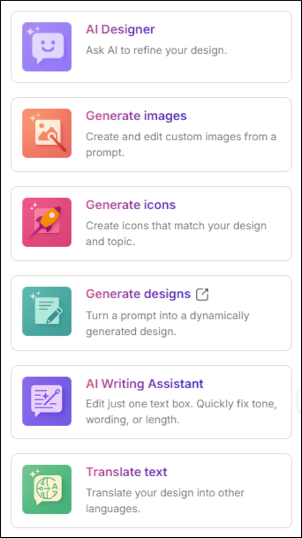 This capability is part of a larger suite of AI-enhanced workflows Venngage can handle for you. It can also:
- Refine your designs
- Generate custom images
- Generate icons, logos and banners
- Create new designs based on prompts
- Edit text within your designs for tone, wording or length
- Translate your text into other languages
- Accessibility: auto-check contrast, layout and font readability
- Branding: extract brand colors, fonts, and styles from existing marketing material. Auto-apply your logo and visual identity to every design.
I haven’t scratched the surface of what Venngage’s AI toolset can do – but I look forward to exploring it, thanks to the encouragement of this successful project.
Why did this experiment work so well?
One thing that made this experience a success is that I was NOT starting out with a blank AI prompt. That’s always been a challenge for AI-based image creation – the tool must interpret what you want the output to look like. Faced with a myriad of design options, it makes its best guess – which is often WAY different than your expectations. In other cases, even when you tell it exactly what you want, it just doesn’t listen very well.
In this case, my starting point was a nice-looking Venngage infographic template. So the AI agent didn’t have to guess at what I was looking for visually. All it needed to focus on was adding my list of strategies to the boxes on the page and selecting and placing an appropriate icon for each. And it did an excellent job of that.
The bottom line is that this that Venngage’s AI assistant produced a high-quality infographic, customized to my needs, in a fraction of the time that it would’ve taken me to manually modify the template to create it. This approach was so effective that I’ll probably use it again in the future!
Leave a Reply